
How to Point Your InterServer Domain to Network Solutions (Beginner’s Guide)

Quick Summary
To use Network Solutions hosting with a domain registered at InterServer, enter the exact nameservers assigned in your Network Solutions account, or update only the required DNS records if you want to keep DNS managed at InterServer. The right method depends on where your DNS zone and email records are managed.
Change nameservers at InterServer to the pair Network Solutions assigns you
Use the exact nameserver pair shown in your Network Solutions account
DNS changes may appear at different times because resolvers cache records
Verify the switch with a free DNS propagation checker
When you buy a domain from InterServer but want to host your website on Network Solutions, you'll need to point your domain to their servers by updating its nameservers. Don't worry this process is beginner-friendly and doesn't require advanced technical skills.
In this guide, I'll walk you step by step through updating nameservers so your domain works perfectly with Network Solutions hosting. If you're still weighing hosts, our InterServer web hosting review covers their performance and pricing in depth.
Key Takeaways
- •Pointing a domain means changing nameservers from InterServer to Network Solutions.
- •Use the nameservers assigned to your account; examples from other accounts may not apply.
- •DNS updates are subject to resolver caching and may appear at different times around the internet.
- •You can verify the switch with a free DNS propagation checker.
- •Troubleshooting involves checking typos and clearing cache.
Step 1: Gather the Nameserver Information from Network Solutions
Before changing anything, you’ll need the nameservers provided by Network Solutions:
- Log in to your Network Solutions hosting account.
- Go to Account Manager → My Hosting Packages → Domain Details.
- Copy the exact nameservers assigned to this domain in your account. Values are account- and product-specific; do not copy examples from another customer. If you only need to point a website while keeping email and other DNS records at InterServer, use the DNS-record values provided by Network Solutions instead of changing nameservers.
Use the assigned nameservers shown in your account

Step 2: Log in to Your InterServer Domain Account
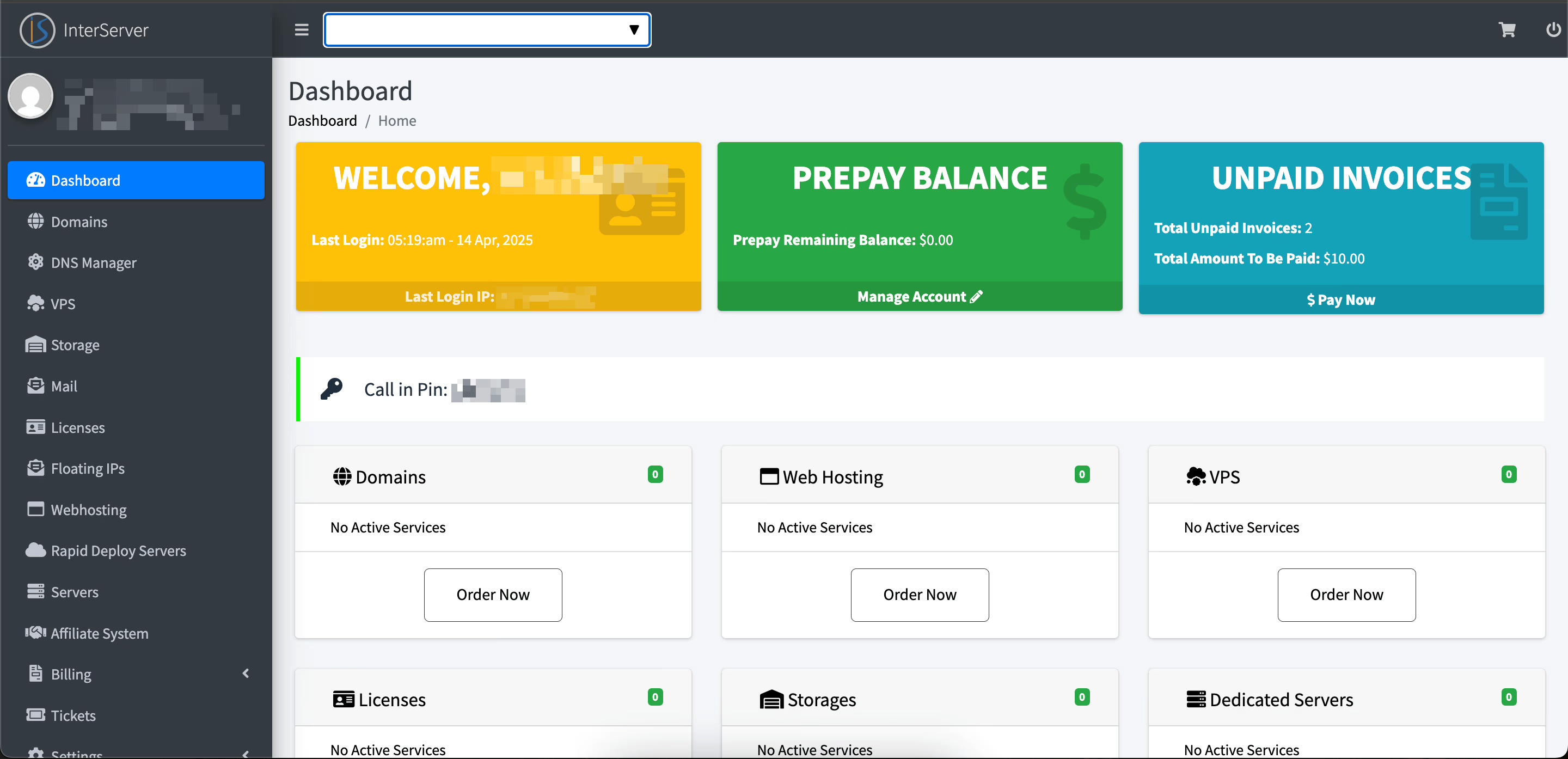
Go to InterServer.net → click Login (top right corner). Enter your credentials, and from the dashboard, click Domains.
Step 3: Select Your Domain
From your list of domains, click the one you want to point to Network Solutions. This will open the domain management panel.
Step 4: Update Nameservers in InterServer
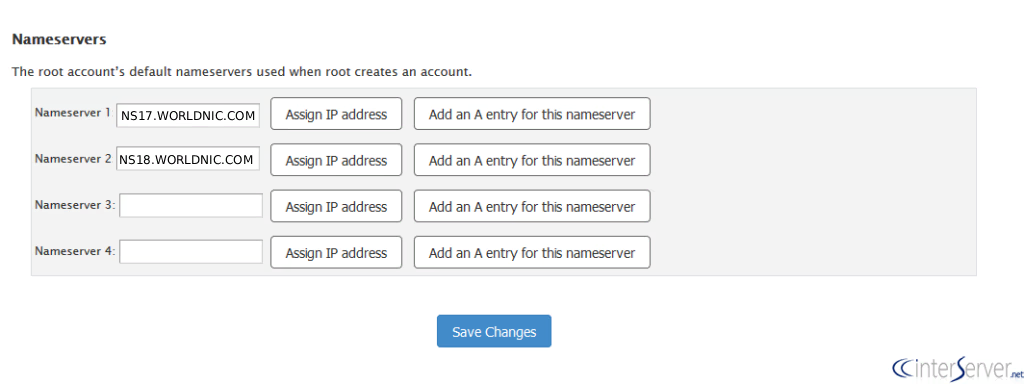
Inside the domain management panel, look for DNS / Nameserver Settings. Select Custom Nameservers, then paste the exact nameserver pair you copied from your Network Solutions account. Changing nameservers changes which DNS zone is authoritative; confirm that required website, email, and verification records exist in the destination DNS zone before switching.
Enter the nameservers assigned to your account
Step 5: Wait for Propagation
After saving, recursive DNS resolvers will use the new delegation as their cached data expires. There is no single propagation timer: updates can appear at different times depending on resolver caches and record TTLs. Keep the old hosting active during the transition and check authoritative nameservers and public resolvers before cancelling a service.
Step 6: Verify the Update
To confirm your domain is pointing to Network Solutions:
- Visit whatsmydns.net.
- Enter your domain name.
- Check if the nameservers now show Network Solutions’ values.
Troubleshooting Tips
- Double-check for spelling mistakes in nameservers.
- If your site still doesn’t load after 48 hours, contact InterServer or Network Solutions support.
- Clear your browser cache or test on another device.
Final Thoughts
Pointing your InterServer domain to Network Solutions is simple once you know the steps. Just replace InterServer’s default nameservers with Network Solutions’ nameservers, then wait for propagation.
If you run into any issues, their support teams are usually very helpful. Soon enough, your website will be live and running smoothly on Network Solutions hosting!